2026 NAGARA Annual Conference
Conference Mobile App
View the agenda, save sessions, connect with attendees, explore exhibitors, and use your digital badge in Philadelphia.
The 2026 NAGARA Annual Conference mobile app is your central hub for navigating the conference. Use the app to view the agenda, save sessions, connect with other attendees, send messages, view exhibitor and sponsor information, access the exhibit hall map, and use your digital badge.
This guide walks you through the main features of the app and how to use them before and during the conference.
Download the App First
Download the 2026 NAGARA Conference Mobile App
Download the 2026 NAGARA Conference Mobile App from either the Apple App Store or Google Play Store.
Use the QR code on this page, or visit the app download link directly.
When prompted to log in, use the same NAGARA website username and password you used when registering for the conference.
Do NOT create a new profile.
Creating a new profile may prevent you from seeing your correct registration, attendee information, digital badge, and great app features. Please log in with your existing NAGARA website credentials.
Forgot your password? Select the Forgot Password link and follow the reset instructions sent to your email.
Download the App
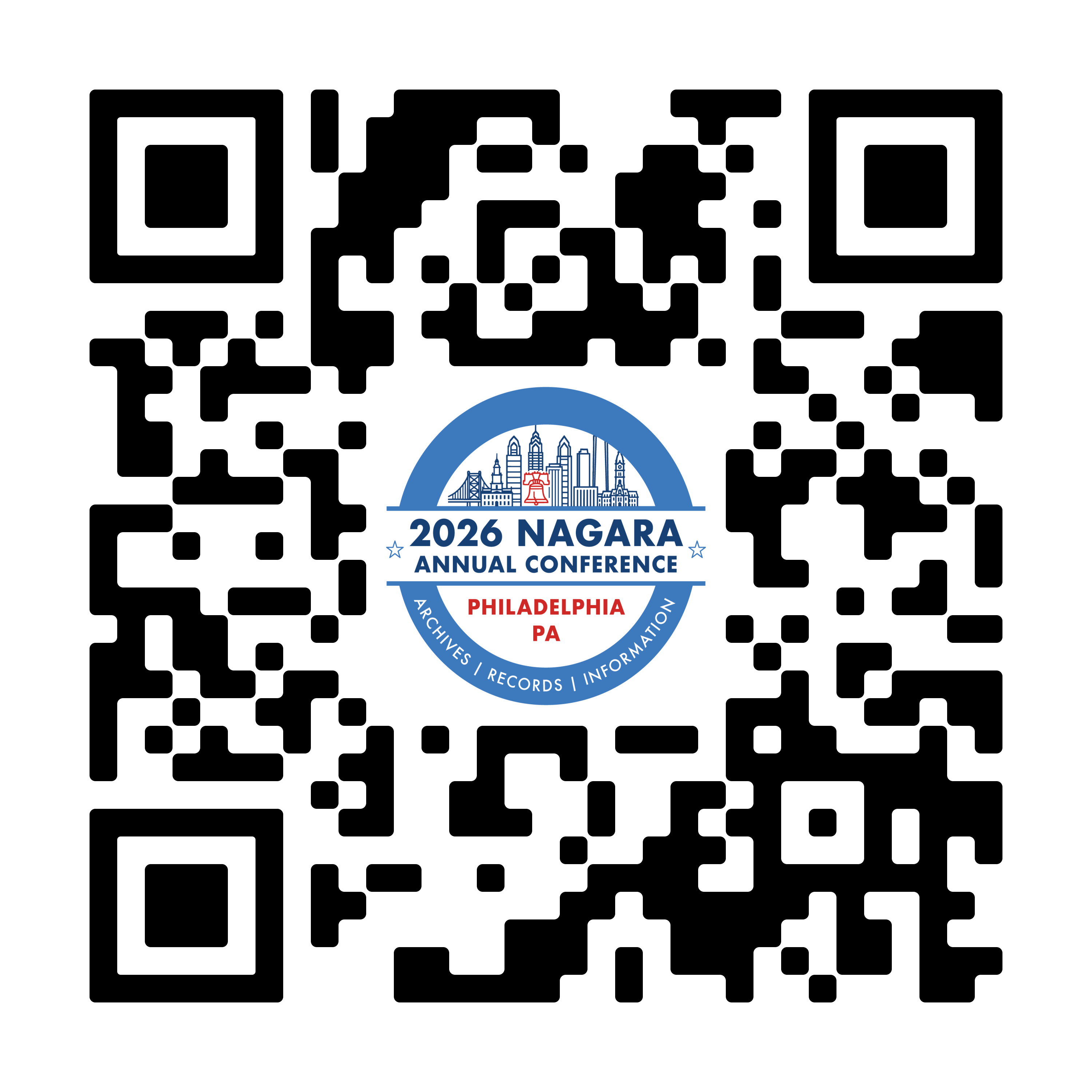
Scan to Download
Scan to download the app.
You can also search “NAGARA Annual Conference” in your device’s app store.
Start Here
What You Can Do in the App
Select any section below to expand step-by-step instructions and screenshots.
- Open the app and find the main dashboard
- Send direct messages and view group chats
- Use the Social Feed
- Explore the agenda and save sessions
- Find and connect with attendees
- View the exhibit hall map, sponsors, and exhibitors
- Use your digital badge and business card
Tip: Select a section heading below to open or close that part of the guide.
Section 1
Open the App and Find the Main Dashboard
Start at the splash screen, then use the dashboard tiles to navigate the conference.
Opening the App
Start at the NAGARA 2026 splash screen.
When you open the NAGARA 2026 Annual Conference mobile app, you will first see the conference splash screen.
Once the app loads, you will be taken into the #NAGARA2026 event experience.
Main Dashboard
Use the dashboard tiles to navigate the conference.
The main dashboard gives you quick access to the major areas of the conference app, including:
Agenda
Social Feed
Attendees
Wi-Fi
Conference Meals
Exhibit Hall Map
Sponsors
Exhibitors
Food & Drink in Philly
Things To Do
You can also access your digital badge from the dashboard.
Section 2
Send Direct Messages and View Group Chats
Send one-on-one messages and participate in group conversations.
Direct Messages and Group Chats
The app allows you to send one-on-one messages to other attendees and participate in group chats.
Step 1
Tap Messages.
To view your messages, tap the Messages icon in the bottom navigation bar.
At the top of the Messages screen, use Direct for one-on-one messages and Group for group conversations.
Step 2
Tap the plus sign to start a new chat.
To start a new direct message, tap the plus sign in the upper-right corner of the Messages screen. This opens the Create Chat screen.
Step 3
Search for an attendee.
Begin typing the attendee’s name in the search field. When the correct person appears in the search results, select their name and press Done to open a new message.
Step 4
Send your message.
Once you select an attendee, the message thread will open. Type your message and send it from the conversation screen.
Group Chats
Use the Group tab for group conversations.
From the Messages screen, tap Group to view or continue group chats. Great for Dinner Groups, Affinity Friends, and more!
Section 3
Use the Social Feed
Share updates with the conference community.
Conference Activity Wall
Share updates with the conference community.
The Social Feed is a conference-wide activity feed. Think of it as a shared conference wall where attendees can post updates, comments, photos, and excitement throughout the week.
To create a post, tap into the field that says “What’s on your mind?”
Section 4
Explore the Agenda and Save Sessions
Browse by day, view session details, learn about speakers, and save sessions.
Find Sessions and Build Your Schedule
The Agenda is one of the most important areas of the app. You can browse by day, view session details, learn more about speakers, and save sessions to your personal schedule.
Step 1
Select a conference day.
From the main dashboard, tap Agenda. At the top of the Agenda screen, you will see the conference dates.
Tap the day you want to view. The agenda for that day will appear below.
Step 2
Scroll through the agenda.
Each agenda item shows helpful information such as the session time, title, location, track, and any applicable sponsor information. Scroll through the agenda to review sessions, meals, networking groups, exhibit hall hours, and other conference activities.
Step 3
Open a session to view details.
Tap a session title to open the session detail page.
The detail page may include the session name, date, time, room location, tracks, links to additional information, the session overview, and speaker information. Tap Show More when available to expand the description.
Speaker Profiles
Tap a speaker’s name to learn more.
From a session detail page, scroll to the Speakers section. Tap a speaker’s name to view their speaker profile, which may include their photo, title, organization, biography, and related sessions.
Add Sessions
Save sessions to your schedule.
From a session detail page, tap Add Session. You may be able to add the session to your app agenda, your phone calendar, or both.
You can also add sessions directly from the agenda list by tapping the small plus icon next to an agenda item.
My Sessions
Review your saved sessions.
After adding sessions, tap My Sessions from the agenda area to view the sessions you have saved.
Section 5
Find and Connect with Attendees
Search attendees, send messages, favorite profiles, and add notes.
Attendee Profiles
Message, favorite, or add a note.
The app includes an attendee directory. From the main dashboard or bottom navigation, tap Attendees to search for conference attendees and open their profiles.
On an attendee profile, you may be able to send a message, favorite the attendee, or add a private note.
Helpful Tip
The note feature can be especially helpful if you want to remember a conversation, follow-up item, or shared interest after the conference.
Section 6
View the Exhibit Hall Map, Sponsors, and Exhibitors
Find booth locations and browse sponsor and exhibitor listings.
Exhibit Hall Map
Find booth locations.
To view the exhibit hall layout, tap Exhibit Hall Map from the main dashboard. The map shows exhibitor booth locations and can help you find companies and organizations in the exhibit hall.
Sponsors
View sponsor listings by category.
From the main dashboard, tap one of the sponsor categories, such as Strategic Partners, Thought Leaders, or Contributors, to view sponsor listings.
Exhibitors
Browse the exhibitor list.
Tap Exhibitors to view the full exhibitor list. Exhibitor listings may include organization names, logos, and booth numbers.
Section 7
Use Your Digital Badge and Business Card
Exchange contact information by scanning QR codes.
Digital Badge and Business Card
The app includes a digital badge and business card feature. This allows attendees to exchange contact information by scanning QR codes.
Your Card
Open your digital business card.
From the main dashboard, tap your digital badge area. You can also access this feature through the app’s additional menu options.
Your digital card includes your QR code and basic profile information. Other attendees can scan your QR code to access your profile and save your card.
Scan Badge
Scan another attendee’s badge.
To scan another attendee’s badge, open your digital badge and tap Scan Badge. Then point your camera at the other attendee’s printed badge or digital QR code.
Scanning a badge opens that attendee’s profile and allows you to save their card.
Privacy Note
This process helps protect attendees because someone must scan your QR code before adding your card to their wallet.
Before You Arrive in Philadelphia
We encourage you to download and explore the app before arriving at the conference. Review the agenda, save sessions you plan to attend, browse exhibitors and sponsors, and begin connecting with colleagues.
The app is here to help you make the most of your NAGARA 2026 Annual Conference experience.